Cull thousands of photos with AI —
then enhance the keepers.
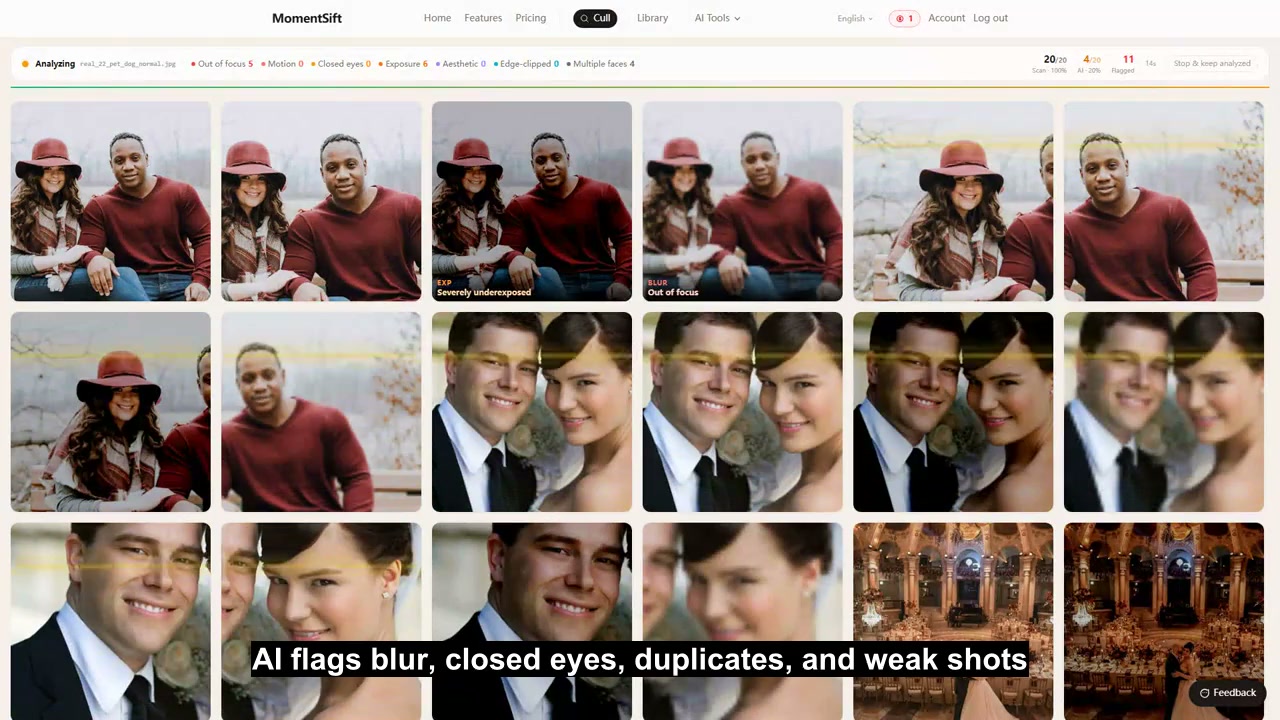
Drop in a folder. AI flags blurry, closed-eye, and duplicate shots — then you choose the keepers.
Free trial: 100 photos + 10 AI credits · No card required
How does MomentSift help you choose and improve photos?
Import a photo folder. MomentSift groups similar shots and flags blur, closed eyes, and other issues. You confirm the keepers, then enhance, create, or export them.
- Step 1
Bring in the whole shoot
Open a folder from your drive or select photos in your mobile browser — no desktop app required.
JPGHEICRAWBrowser import - Step 2Core
Let AI screen and organize
AI detects blur, closed eyes, and exposure issues, groups photos by scene, and flags obvious rejects ahead of time.
8 checksScene clusteringPre-screened rejectsFully automatic - Step 3Core
Confirm the best shots quickly
Compare similar photos side by side and decide with arrow keys or A/D, with skip and undo always available.
Keyboard shortcutsSkip this groupUndo - Step 4Core
Enhance or keep creating
Upscale, restore faces, and retouch your picks, or continue with text-to-image and reference-based creation.
AI EnhancementAI Text-to-ImageAI Image-to-ImageAI Photo Analysis - Step 5
Deliver in the original format
Export a ZIP or write to a local folder, with optional Lightroom XMP ratings ready for post-processing.
ZIP exportLocal folderLightroom XMP
Enhance right after picking — no need to switch apps
Choose a photo, then use the tool that fits the edit.
 Before
 After
AfterDenoise & 4x Upscale
Reduce noise and upscale your image by 4x.
 Before
 After
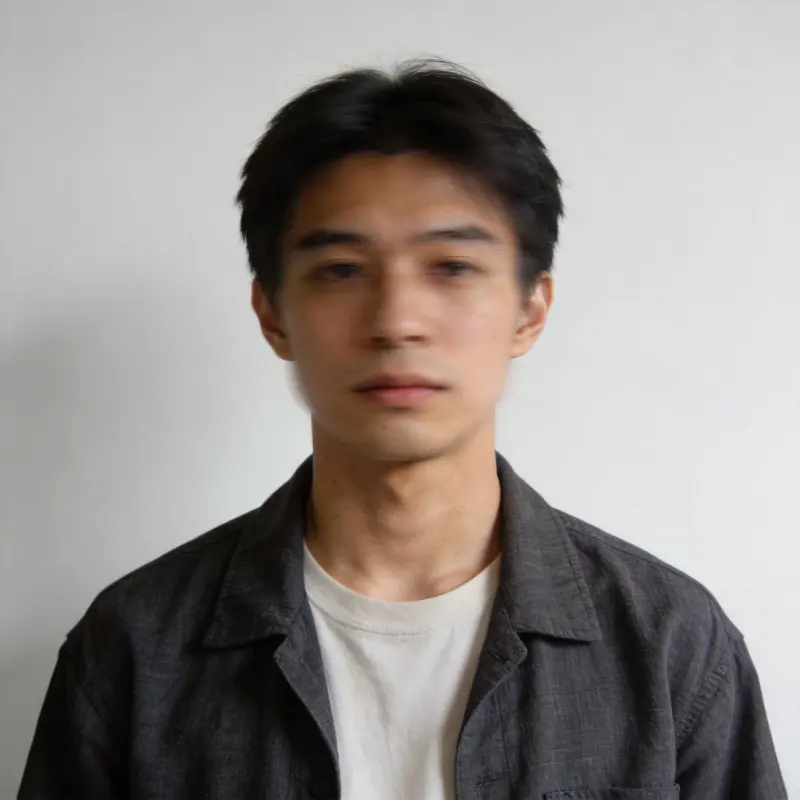
AfterFace Restoration
Improve blurry or damaged faces in portraits and old photos.
 Before
 After
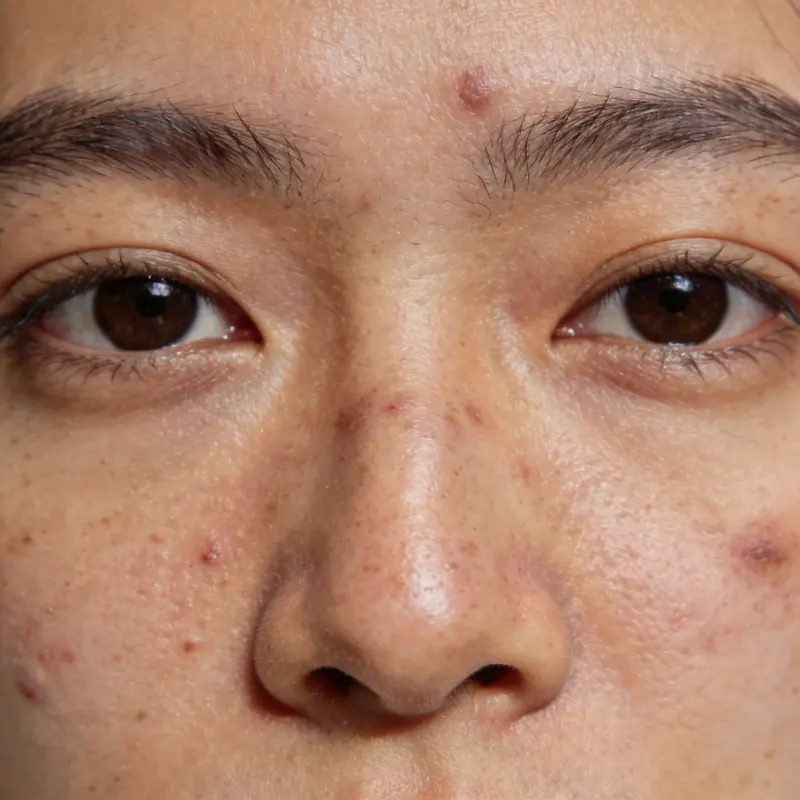
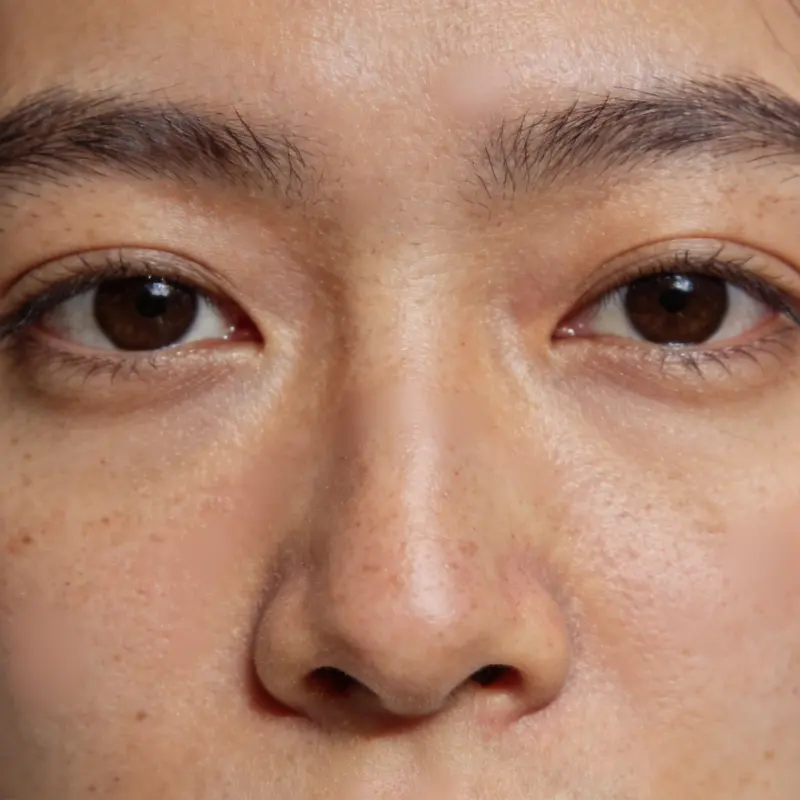
AfterNatural Portrait Retouching
Retouch skin tone and facial detail in portraits, then compare the result with the original.
The finished set is yours, and so are your originals
Export your selected photos without changing the originals.
Bulk Export Originals
Pack your picks' original files into a local folder or a ZIP in one click, organized by person or scene if you like.
Lightroom Rating Sync
Export .xmp files — your picks show up with a 5-star green label automatically, ready for Lightroom post-processing.
Originals Never Uploaded
Basic detection runs locally; AI analysis only uploads a preview image and discards it right after. Your full-resolution originals stay on your drive — never uploaded.
Cloud processing for AI image tools
When you enhance a photo or use image-to-image, the required images are uploaded for cloud processing. Text-to-image uses your prompt. Cloud copies are typically deleted after 7 days. Completed images are saved to your local library.
FAQ
What is MomentSift?
Is it completely free?
Do my photos get uploaded to a server?
What photo formats are supported?
Could AI cull the wrong photos?
Do I need to install any software?
Where is my MomentSift library stored?
Which browser should I use for large photo batches?
From a pile of photos to a finished set — try it today
Start for free, no install needed, works right in your browser